Use case
Presenting candidates to your client
Once the candidate agrees, LetterForge writes the email that puts them forward to your contact at the client: a short, factual profile with availability and salary expectation, and a request for feedback.
How it works
-
Step 1
Get their consent
Only put a candidate forward with their consent. Until then LetterForge can keep the client's name out of the emails to the candidate, and does so by itself when you approached them directly.
-
Step 2
Put them forward to the client
With "Present candidate to client", LetterForge writes the email to your contact in the language you set for that client. You open it in your mail app and send it.
-
Step 3
Record the feedback and pass it on
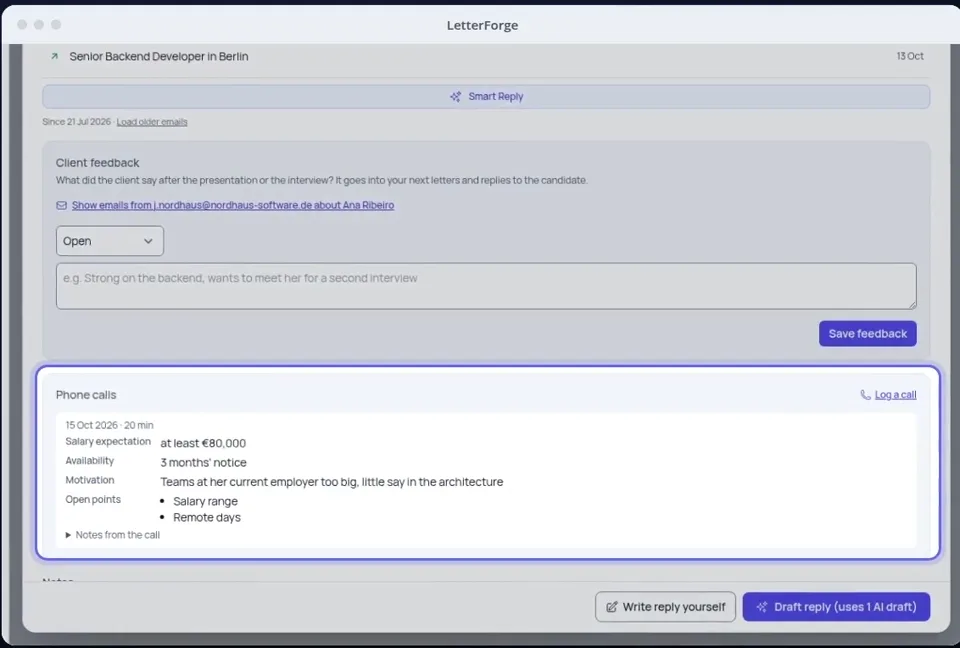
Enter what the client said under "Client feedback" on the candidate. From that, LetterForge writes the email to the candidate, whether it goes ahead or not.
What LetterForge uses for it
- The vacancy, and the client with your contact there
- Availability and salary expectation from your notes
- An extract of the CV without contact details and date of birth, as long as CVs may go to the AI provider (the default)
- The "Presented to client" column on the board and an entry in the timeline
How to word it
Wording, rules and examples for this situation, with or without LetterForge.
FAQ
- Does it work without a CV?
- Yes. LetterForge then describes the candidate from the vacancy and your notes.
- Does the candidate see the email to the client?
- No. The presentation goes to your contact at the client. LetterForge notes it in the candidate's timeline but does not count it as a reply to them.
- Which language does LetterForge write to the client in?
- In the language you set for that client, whatever language you write to the candidate in.
- Does the presentation include my booking link?
- No. Your booking link for candidates does not belong in an email to the client, so LetterForge leaves it out there.
Try it yourself
Try it on your own emails, with 20 free replies a month.