Use case
Keeping LinkedIn replies in the thread
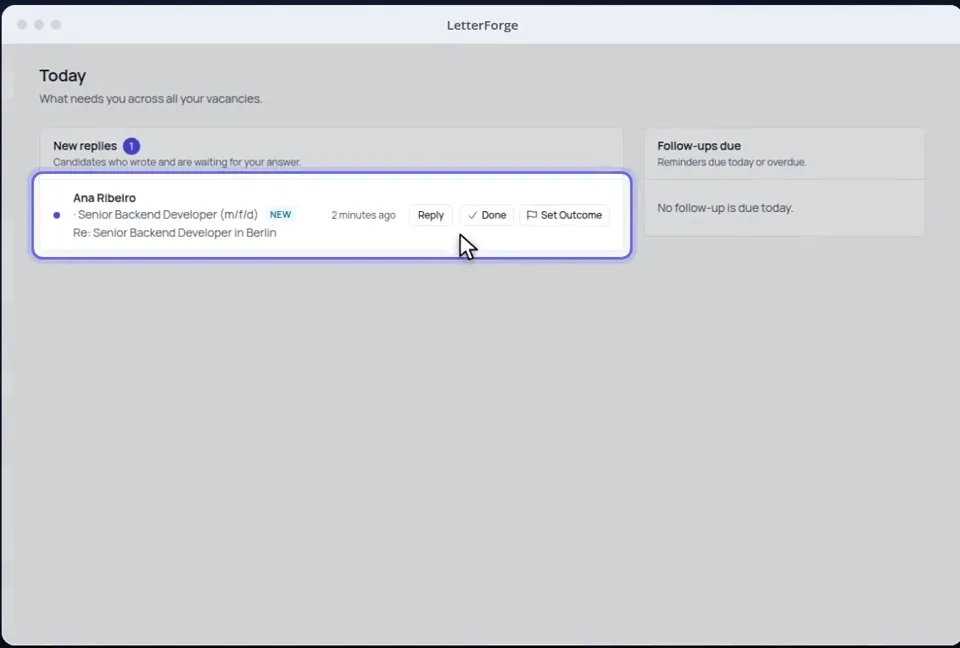
Some candidates only ever answer on LinkedIn. LetterForge cannot read LinkedIn, but you paste the reply in and it counts like a reply by email: in the thread, under Today and for Smart Reply.
How it works
-
Step 1
Have the message written
For candidates you only know from LinkedIn, LetterForge writes short messages without a subject line, sized for an InMail of at most 1,900 characters.
-
Step 2
Copy it and mark it as sent
You copy the text to LinkedIn, send it there and mark it as sent in LetterForge. From then on the follow-up reminder runs as it does for an email.
-
Step 3
Paste the reply
When the candidate answers, paste their message with "Paste LinkedIn reply". It goes into the thread, the follow-up stops, and Smart Reply can answer it.
What LetterForge uses for it
- The messages you marked as sent
- The replies you paste, up to 8,000 characters
- The vacancy it is about: if the candidate is in several, you pick it when pasting
- The InMail limit of 1,900 characters, so the text fits
How to word it
Wording, rules and examples for this situation, with or without LetterForge.
FAQ
- Does LetterForge read my LinkedIn messages?
- No. LetterForge has no connection to LinkedIn and only sees what you paste in or mark as sent.
- What does pasting the reply give me?
- Without it, LetterForge thinks the candidate is silent and keeps reminding you to follow up. With it, you see where the conversation stands in one place, and the next message builds on it.
- How long is a LinkedIn message?
- LetterForge aims for about 1,000 characters and stays under 1,900, the InMail limit. Many candidates read these messages on their phone.
- Does it work for the note of a connection request?
- Yes. LinkedIn allows 300 characters for that note. In the draft you choose InMail or connection request, and a counter shows whether the text fits.
Try it yourself
Try it on your own emails, with 20 free replies a month.